

Somewhat related:
Making all paint candy paint-like
source: Artur Haddad of StackOverflow
The idea is to make:
1. Shader variables
<Shader_Variable>Fresnel_Falloff_Brightness_Amount</Shader_Variable>
and
<Shader_Variable>Fresnel_Falloff_Contrast_Amount</Shader_Variable> 's values be above 0.0
2. Change all Paint type to Standard*
*In my brief experimentation I discovered Candy Paint were labeled as Standard, so.
When all is said and done you should have something similiar to this (in Ugly Mode anyway - the reason I made this):

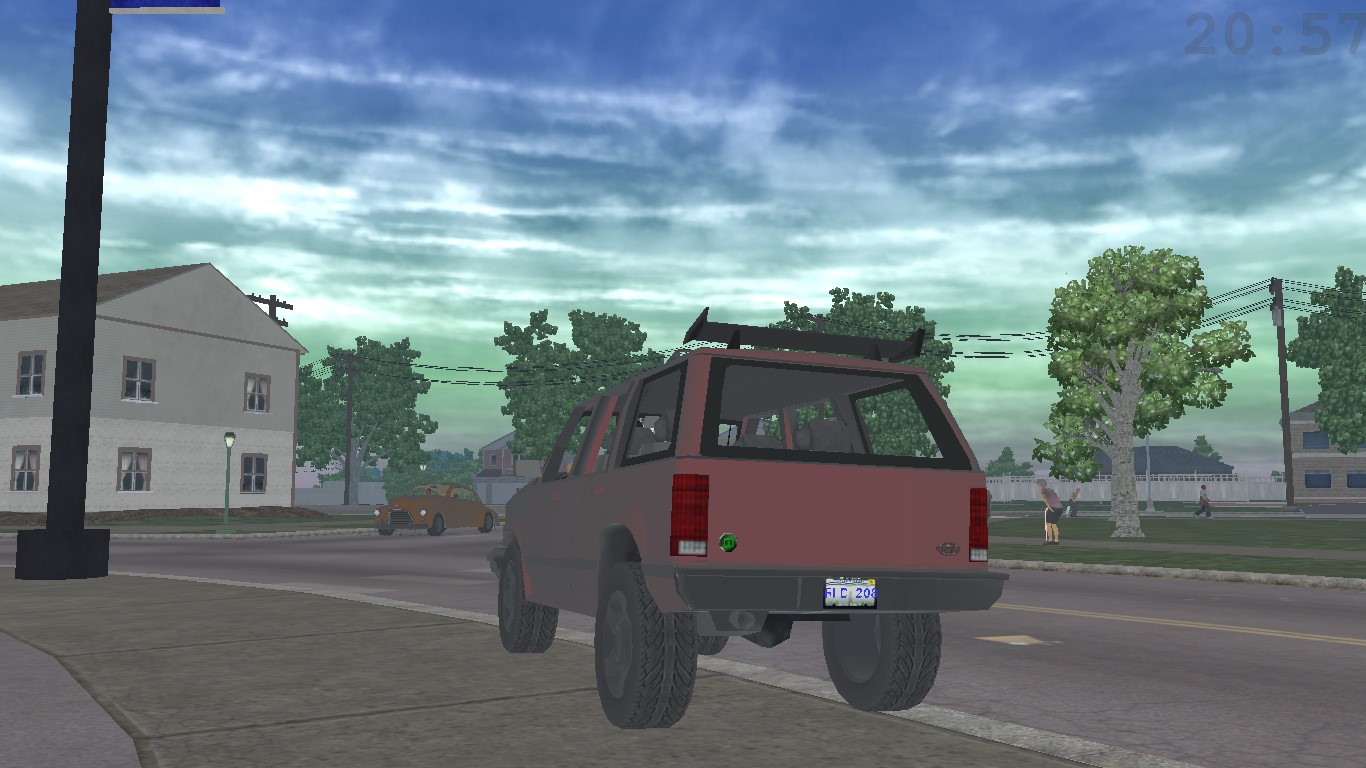
You can use it without Ugly Mode as well.
The file I am attaching is FOR GOTR. Vanilla file seems a different size, so you'll have to do it according to the provided steps if you need to for now. I'm a bit tired to do a proper release (and being honest it looks kinda ass anyway). donut steal
Enjoy
Edit: Added less contrast version which loses less colour of the vehicle (0.85 instead of 1.3)
Making all paint candy paint-like
Juiced Patch lets me play SR2 at a bearable FPS if I press F1, to activate Voliton's "Ugly Mode".

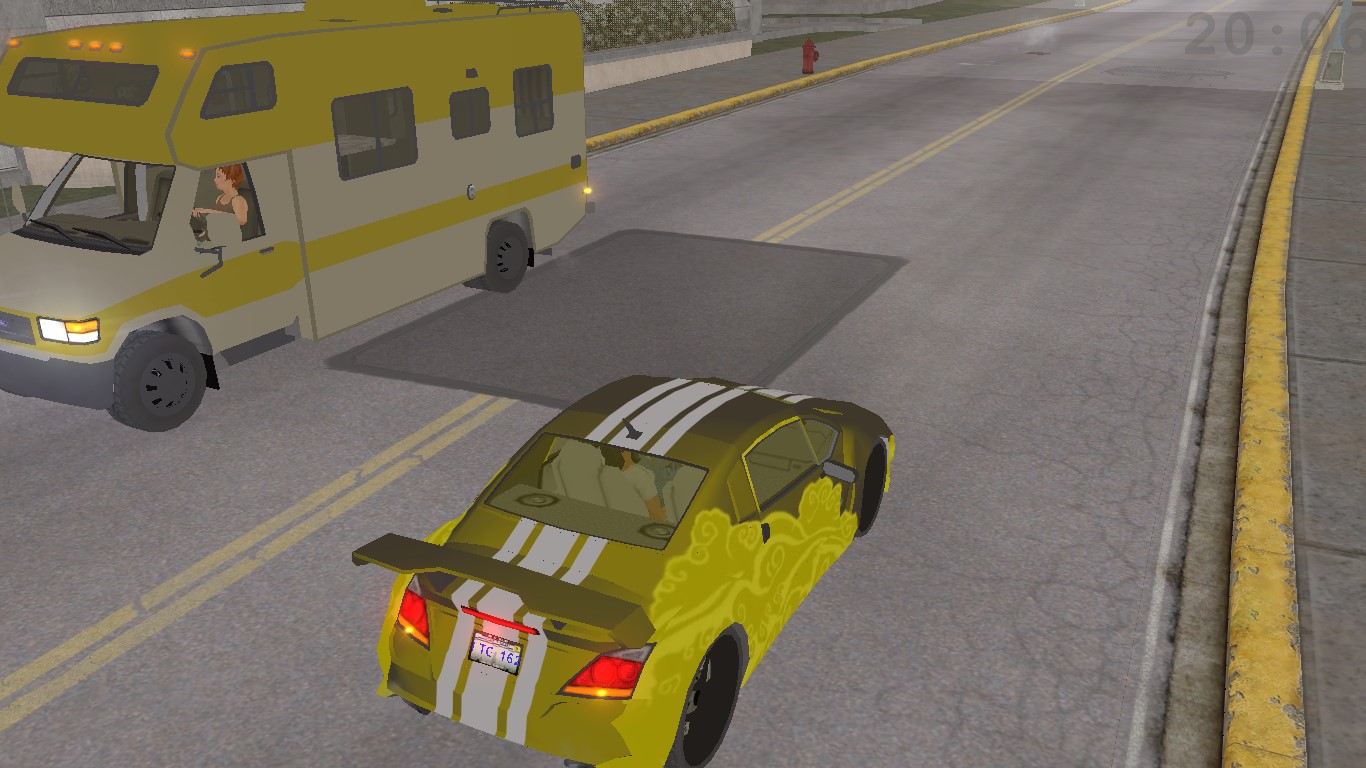
However, one of the setbacks is that it turns off the specular light. This turns every car from a Gradient tool to a Paint Bucket tool (i.e. ugly and flat)
Candy paint (and to a lesser extent, Iridescent) does not suffer from this issue (right picture).
However, one of the setbacks is that it turns off the specular light. This turns every car from a Gradient tool to a Paint Bucket tool (i.e. ugly and flat)
Candy paint (and to a lesser extent, Iridescent) does not suffer from this issue (right picture).
The idea is to make:
1. Shader variables
<Shader_Variable>Fresnel_Falloff_Brightness_Amount</Shader_Variable>
and
<Shader_Variable>Fresnel_Falloff_Contrast_Amount</Shader_Variable> 's values be above 0.0
2. Change all Paint type to Standard*
*In my brief experimentation I discovered Candy Paint were labeled as Standard, so.
There are 600+ paint entries in the game (or atleast in my GOTR files), and since it's repetitious work with a valid pattern, automating this will free up your time for other tasks such as playing the game.
It's very possible there is a "better" way to do this without reliance on plugins*.
However, Notepad++ mostly supports only single-line search and replace**, so.
0. From menu bar, click Language > XML for that sweet, sweet syntax highlighting.
1. Plugins > Plugins Admin

2. Search for "ToolBucket", click the checkbox beside it and press Install (top right). It will prompt to restart and ask you to save any unsaved documents.
3. Check it's appeared in the Plugins submenu like in the picture above
It's very possible there is a "better" way to do this without reliance on plugins*.
However, Notepad++ mostly supports only single-line search and replace**, so.
As SeaboundSaint once mentioned in the Uninstaller sections, you shouldn't 100% trust random files from the internet. They could be doing anything you don't know about. Plugins could be open source, but Imma be honest I don't feel like reading code tonight. (i.e. if ToolBucket steals your data/make it explode I'm not taking responsibility)
As far as I could verify, Notepad++ plugins doesn't seem to have a code review process like F-Droid app store does for example.
I would love to be wrong on this, of course!
As far as I could verify, Notepad++ plugins doesn't seem to have a code review process like F-Droid app store does for example.
I would love to be wrong on this, of course!
notice it has only one line in the ctrl+g
so to do multi line not only you would have to copy TAB CHARACTERS
you would also have to do shit like \r\n or \\r\\n and then MORE TAB CHARACTERS
and may a higher being decide if you use the history feature of the dropdown menu (it doesn't work anymore).
BOOOOOO
(at this point i am sooooo tired. sorry)
so to do multi line not only you would have to copy TAB CHARACTERS
you would also have to do shit like \r\n or \\r\\n and then MORE TAB CHARACTERS
and may a higher being decide if you use the history feature of the dropdown menu (it doesn't work anymore).
BOOOOOO
(at this point i am sooooo tired. sorry)
1. Plugins > Plugins Admin
2. Search for "ToolBucket", click the checkbox beside it and press Install (top right). It will prompt to restart and ask you to save any unsaved documents.
3. Check it's appeared in the Plugins submenu like in the picture above
Now to actually Find and Replace:
<Shader_Variable>
You can change the float values based on your preference.
<Paint_Type> (note, TICK "USE REGULAR EXPRESSIONS" BOX!) .*? is a regular expression that acts as a wild card - as long as there is <Paint_Type> and </Paint_Type>, it doesn't care what's in the middle.
So for first one, if Notepad++ open the plugin from menu bar > Plugins > ToolBucket
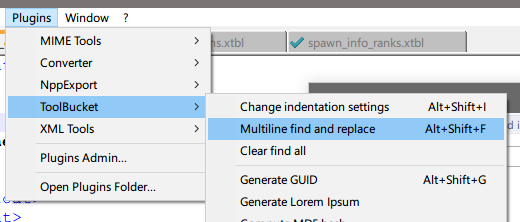

If you did it correctly it will say X matches replaced. If 0 matches, try checking your settings and the contents of the text.

The second one is much easier, you can continue using the ToolBucket interface or Notepad++'s native function (Ctrl+G).
Just make sure to paste <Paint_Type>.*?</Paint_Type> in Find, <Paint_Type>Standard</Paint_Type> in Replace and tick Use regular expression.
<Shader_Variable>
You can change the float values based on your preference.
| Find (Old) | Replace (New) |
|
XML:
|
XML:
|
<Paint_Type> (note, TICK "USE REGULAR EXPRESSIONS" BOX!) .*? is a regular expression that acts as a wild card - as long as there is <Paint_Type> and </Paint_Type>, it doesn't care what's in the middle.
| Find (Old) | Replace (New) |
| <Paint_Type>.*?</Paint_Type> | <Paint_Type>Standard</Paint_Type> |
So for first one, if Notepad++ open the plugin from menu bar > Plugins > ToolBucket
If you did it correctly it will say X matches replaced. If 0 matches, try checking your settings and the contents of the text.
The second one is much easier, you can continue using the ToolBucket interface or Notepad++'s native function (Ctrl+G).
Just make sure to paste <Paint_Type>.*?</Paint_Type> in Find, <Paint_Type>Standard</Paint_Type> in Replace and tick Use regular expression.
When all is said and done you should have something similiar to this (in Ugly Mode anyway - the reason I made this):
You can use it without Ugly Mode as well.
The file I am attaching is FOR GOTR. Vanilla file seems a different size, so you'll have to do it according to the provided steps if you need to for now. I'm a bit tired to do a proper release (and being honest it looks kinda ass anyway). donut steal
Enjoy
Edit: Added less contrast version which loses less colour of the vehicle (0.85 instead of 1.3)
Attachments
Last edited:


