

This mod attempts modifying the skyboxes and general weather of the game to be more enjoyable to play in, while still balancing the game's original colouring intent.
Most notably:
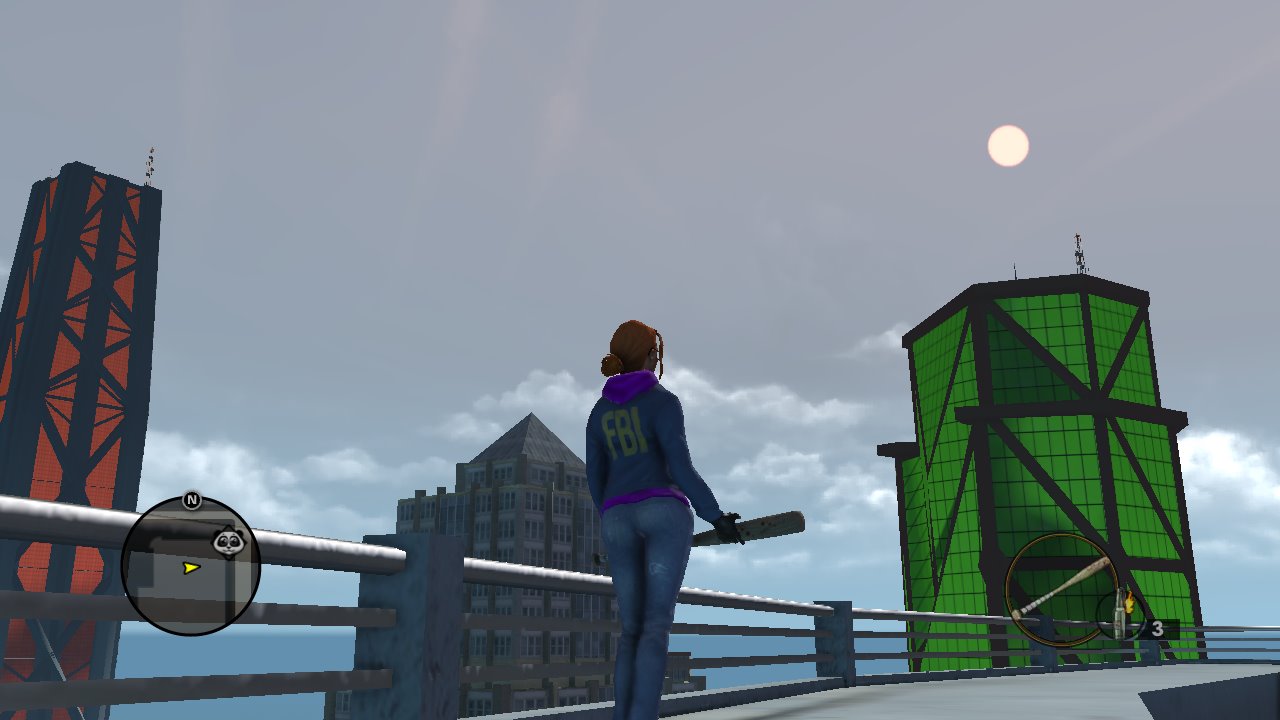
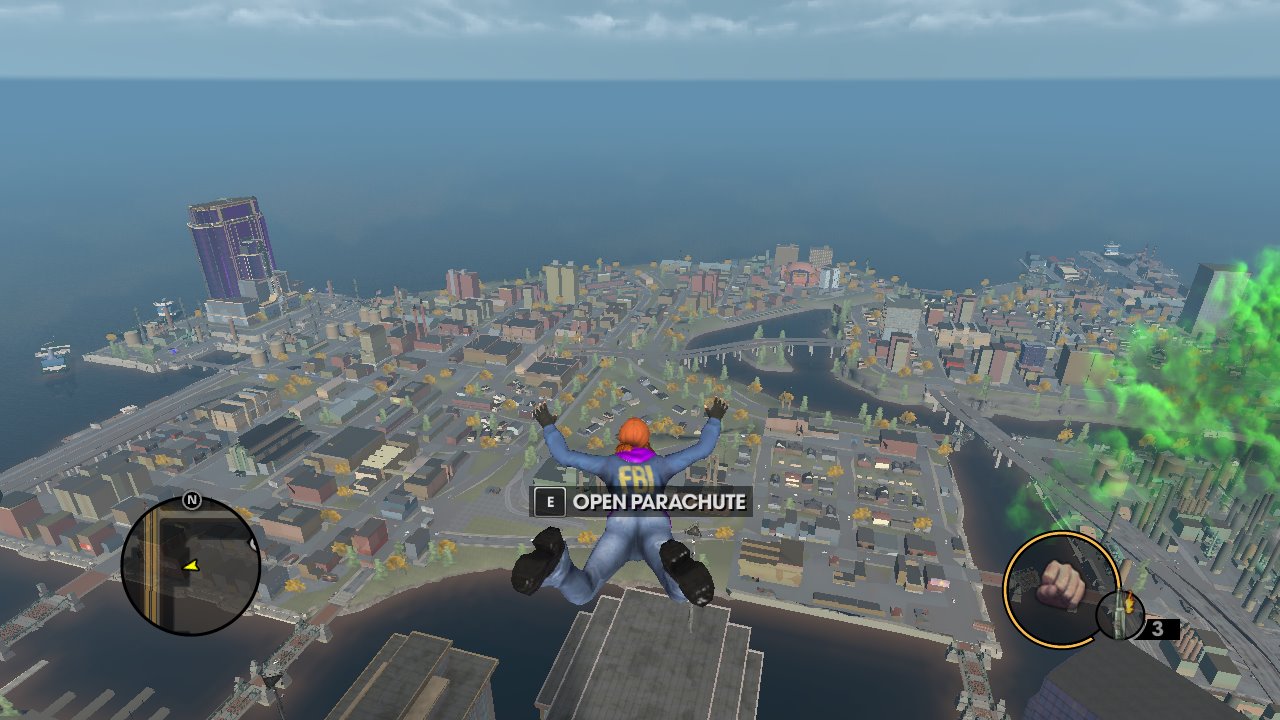
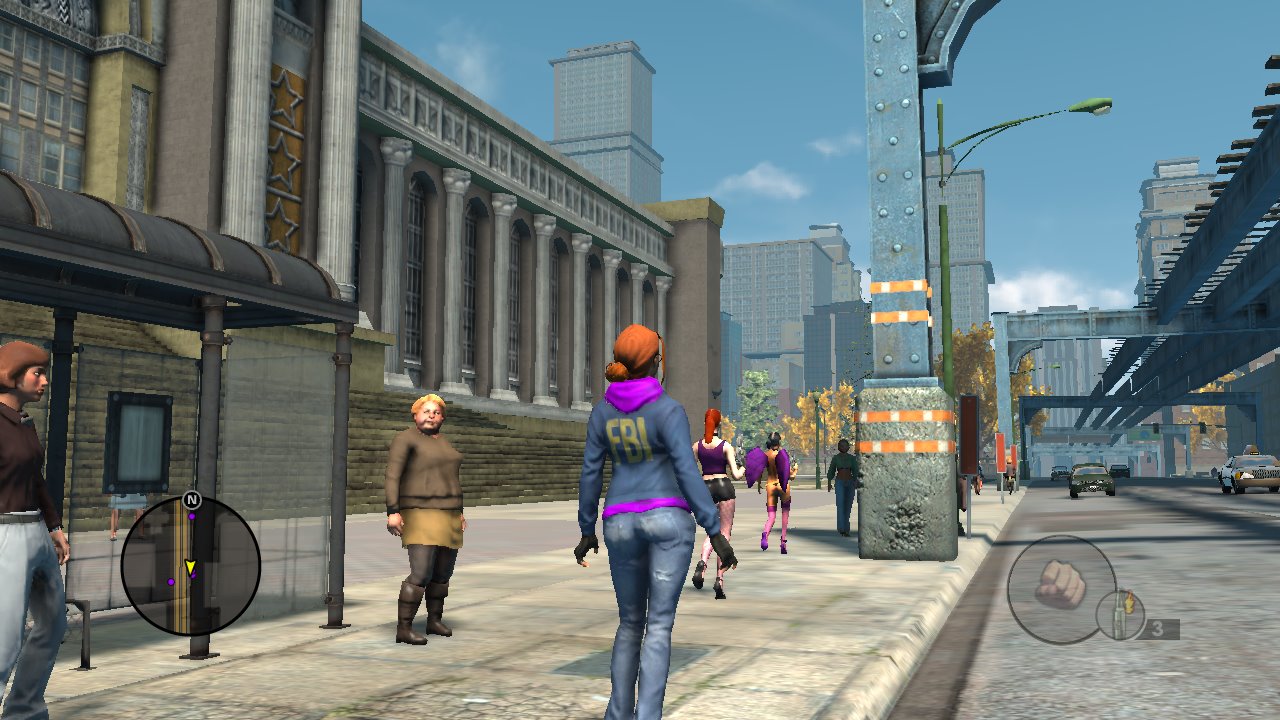
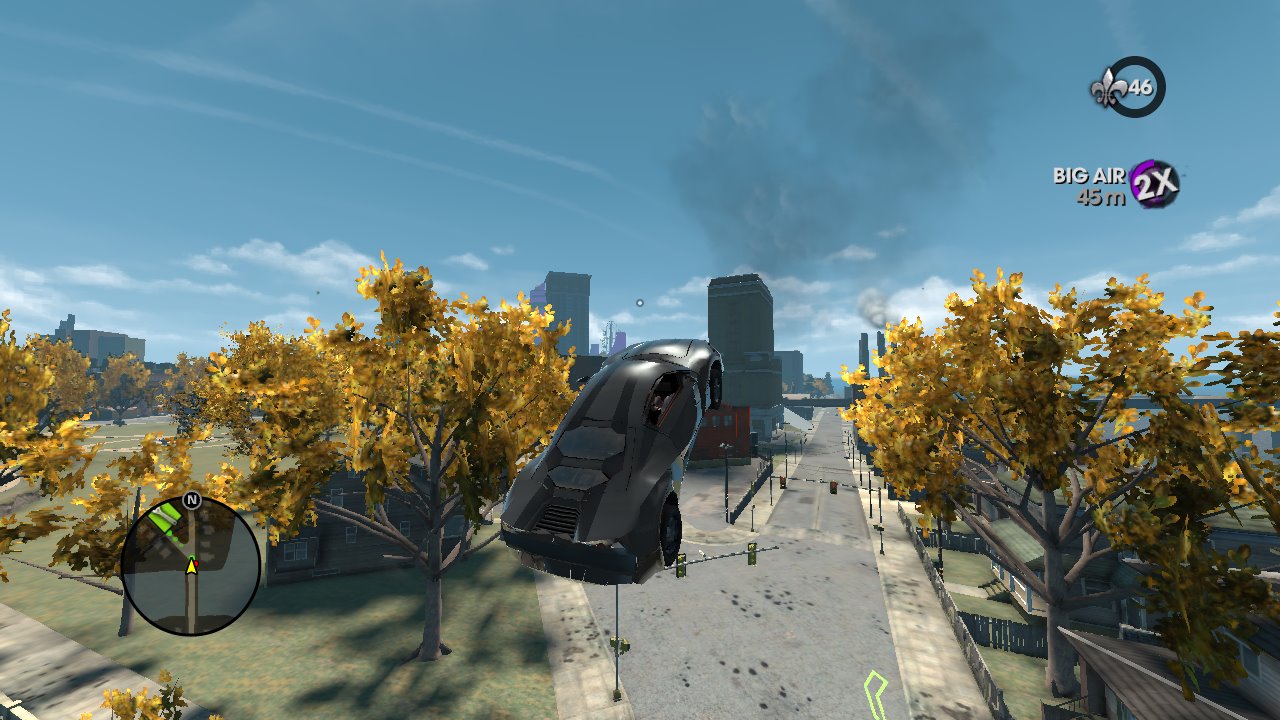
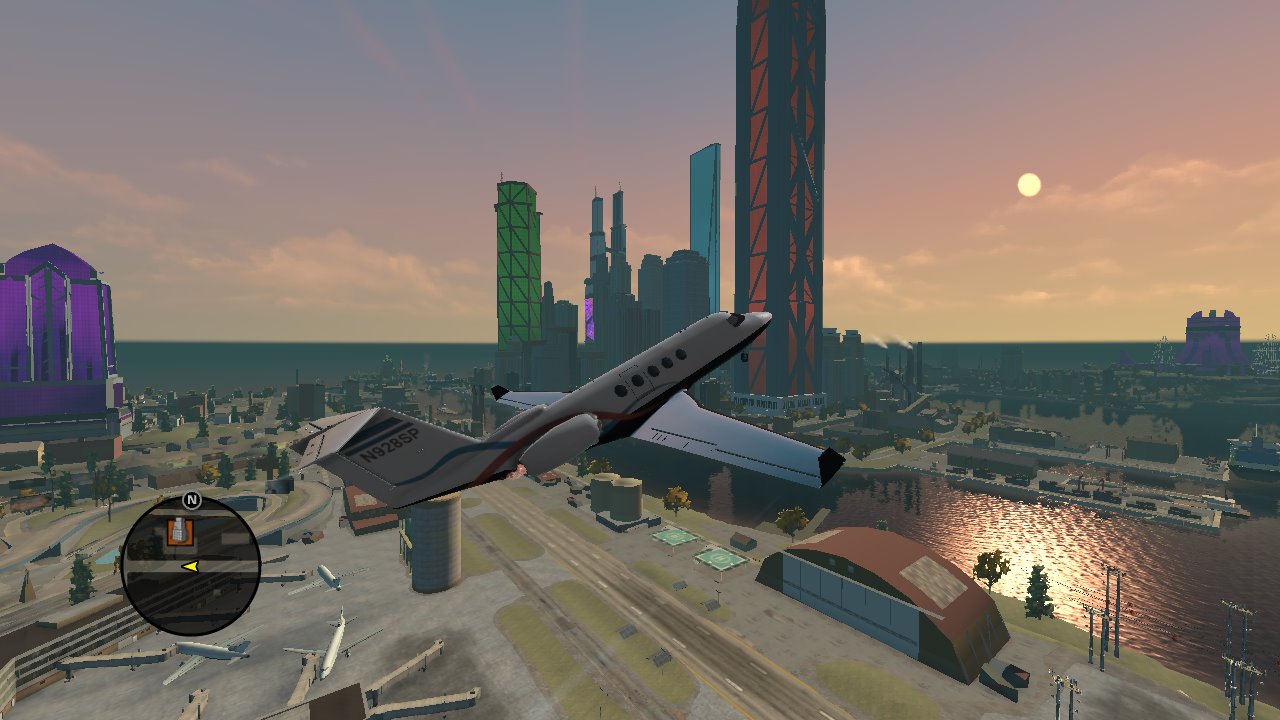
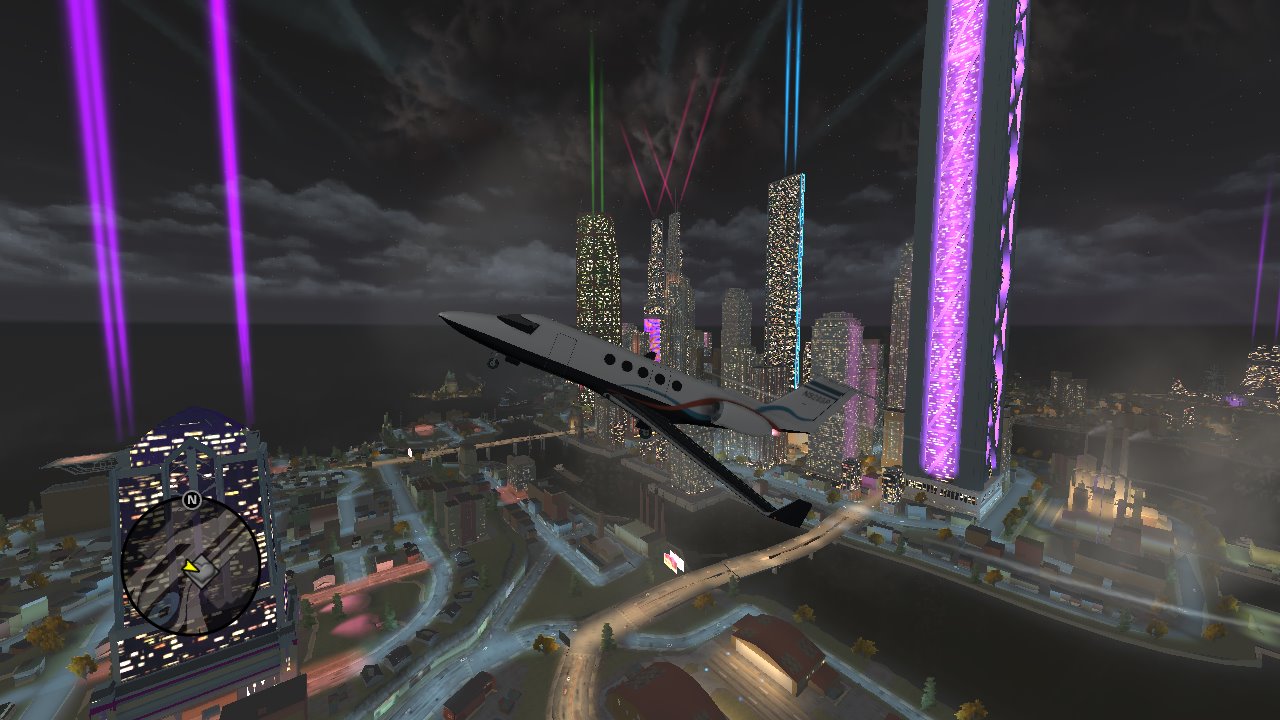
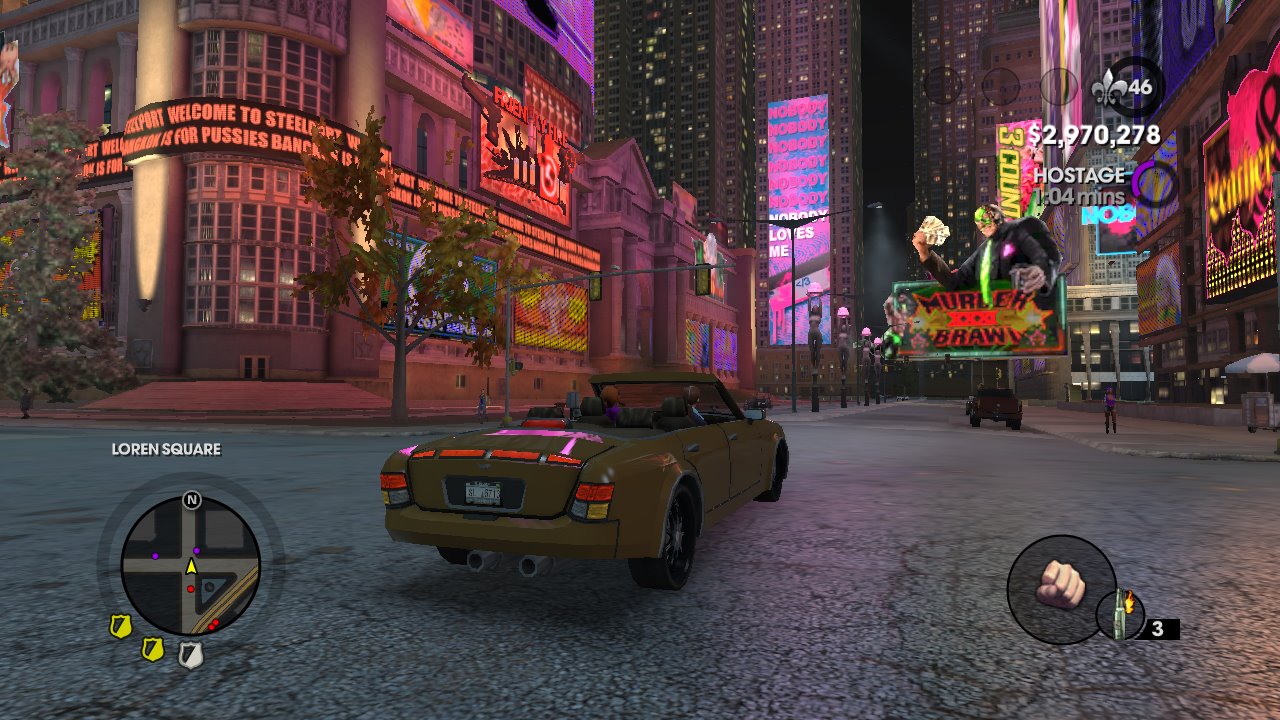
Without further ado... screenshots!!
Files and what they do
default_district.xtbl - Base skybox colours and effects, when it's not overcast/raining/etc
weather.xtbl - Controls general settings of weather, like its durations. This makes each weather stage have a chance to actually happen, instead of "Whoops! All Clear Skies!"
> weather_text.xtbl (v1.1) - just a dependency if you are editing the files with Voliton's Table File Editor.
weather_time_of_day.xtbl - Controls the look of weather effects, such as skybox colour, fog colour, ambient colour, etc.
skybox_effects.xtbl - Drastically reduces Min_Time_Spacing of meteor shower effect to happen from 8000 to 400. This is entirely optional, I'm not even sure if this effect is in the game.
Most people can go there by right clicking Steam's game list > Manage > Browse local files. Otherwise the path is usually C:\Program Files (x86)\Steam\steamapps\common\Saints Row The Third.
Once there, extract all .xtbl files into that folder with game .exe.
Credits
Thousands of people and also the world for teaching me the beauty of the sky
Voliton for releasing such a moddable game, and everyone involved in making game file extraction a thing
Everyone involved in the development of Notepad++
@ReborN07 for their own mod and pointing to many useful resources to get me started
@Emilko309 for Playable Kinzie
@Unapologetic Miscreant, for always being there. <3
Enjoy!
Most notably:
- Every colour tint has been made more neutral (daytime isn't super yellow, nights have less blue ambience)
- Fog in clear skies have been reduced, for improved clarity
- Each daytime TOD has been made more distinct - mornings are somber, afternoons are hot yet vividly bright, and sunsets have more colour
- Weather effects like rain actually happen now, and have had their excessive tinting reduced (afternoon rain having strong green ambience, for example)
- NB: Rain makes zombies not spawn. If you need them, remove weather.xtbl or use
clearskiesweather cheat from Extra Cheats mod.
- NB: Rain makes zombies not spawn. If you need them, remove weather.xtbl or use
Without further ado... screenshots!!
Mornings

Afternoons

Sunsets

Nights

Afternoons
Sunsets
Nights
Most of these are by editing default_district.xtbl in Notepad++ unless mentioned otherwise.
Default Windows.exe notepad.exe has bugs and can randomly cause the file to be unreadable by the game.
In that, <time> numbers mean: 10 is night | 19 is sunrise/morning | 29 is afternoon | 42 is sunset/evening
Any colour-related tag in that file can be said as a LSL-i format; the r g b colours go from 0 to 1 black to white, then the fourth number is its Intensity.
I recommend outworldz' LSL colour picker (archive.org link if need be);
> Changing brightness/exposure: go to <exposure_max> section (bottom of file). Make the number between <value> lower or higher depending on your preference.
> Changing distance fog : There are several tags: <fog_density_new>, <fog_color> and also <horizon_mountain_fog_color> for the horizon fog color.
> Changing the gradients : Many tags: east and west series, east0 for example being closest to horizon, east1 being 30 degrees up, east2 being 60 degrees up, east3 being visible when panning fully upwards.
> Making a weather stage (e.g. Clear Skies) appear less often : in weather.xtbl, lower the Chance and/or reduce the duration.
...
It's late over here and I'm struggling to write this section lol which is why it's not very user-friendly.
Please refer to this overwhelmingly WIP weather editing guide if you have further questions and don't want to make forum account just to ask.
I'll try making a proper SRTT weather files guide someday but no guarantees.
Default Windows.exe notepad.exe has bugs and can randomly cause the file to be unreadable by the game.
In that, <time> numbers mean: 10 is night | 19 is sunrise/morning | 29 is afternoon | 42 is sunset/evening
Any colour-related tag in that file can be said as a LSL-i format; the r g b colours go from 0 to 1 black to white, then the fourth number is its Intensity.
I recommend outworldz' LSL colour picker (archive.org link if need be);
> Changing brightness/exposure: go to <exposure_max> section (bottom of file). Make the number between <value> lower or higher depending on your preference.
> Changing distance fog : There are several tags: <fog_density_new>, <fog_color> and also <horizon_mountain_fog_color> for the horizon fog color.
> Changing the gradients : Many tags: east and west series, east0 for example being closest to horizon, east1 being 30 degrees up, east2 being 60 degrees up, east3 being visible when panning fully upwards.
> Making a weather stage (e.g. Clear Skies) appear less often : in weather.xtbl, lower the Chance and/or reduce the duration.
...
It's late over here and I'm struggling to write this section lol which is why it's not very user-friendly.
Please refer to this overwhelmingly WIP weather editing guide if you have further questions and don't want to make forum account just to ask.
I'll try making a proper SRTT weather files guide someday but no guarantees.
default_district.xtbl - Base skybox colours and effects, when it's not overcast/raining/etc
weather.xtbl - Controls general settings of weather, like its durations. This makes each weather stage have a chance to actually happen, instead of "Whoops! All Clear Skies!"
> weather_text.xtbl (v1.1) - just a dependency if you are editing the files with Voliton's Table File Editor.
weather_time_of_day.xtbl - Controls the look of weather effects, such as skybox colour, fog colour, ambient colour, etc.
skybox_effects.xtbl - Drastically reduces Min_Time_Spacing of meteor shower effect to happen from 8000 to 400. This is entirely optional, I'm not even sure if this effect is in the game.
INSTALLATION
Download and copy the archive file to your game folder. (keep the archive since eventually you will run into conflicting mods issues)Most people can go there by right clicking Steam's game list > Manage > Browse local files. Otherwise the path is usually C:\Program Files (x86)\Steam\steamapps\common\Saints Row The Third.
Once there, extract all .xtbl files into that folder with game .exe.
Credits
Thousands of people and also the world for teaching me the beauty of the sky
Voliton for releasing such a moddable game, and everyone involved in making game file extraction a thing
Everyone involved in the development of Notepad++
@ReborN07 for their own mod and pointing to many useful resources to get me started
@Emilko309 for Playable Kinzie
@Unapologetic Miscreant, for always being there. <3
Enjoy!
Attachments
Last edited:
